Do you get frustrated when dealing with dbms_scheduler jobs?
Do you forget the data dictionary views that can be queried to find information about database jobs?
Do you find yourself looking on
the web, site after site, to find the query that answers your question: “Why did job X failed” ?
Do you get sleepy reading the documentation on dbms_scheduler, in search of basic information?
Just like you, I find dbms_scheduler very complex, too complex for the most things I need to do as a DBA.
Questions I need to answer,
are usually simple, basic questions. I am sure you have the same ones:
When did job X last run?
Was it successful?
If it failed, what was the error?
Does this job take any arguments?
What instance is the job scheduled to run on?
How do I modify the job?
How do I get the ddl of the job?
Is the job taking longer now? Why?
If I have a GUI tool, I can easily find answers for my questions.I preferred using the GUI for any scheduled job questions, until now.
But …
What do you do, if you do not have a GUI tool available, such as Toad, SQL
Developer or other, and the only thing you can use is SQLPlus?
Let me show you what you do!
I’ll walk you through the most important things you need to know about scheduled database jobs.
I will not bore you with theoretical
information, and explanation available in user manuals (you can read that before you go to bed).
What you’ll learn today, is precious stuff you can apply right away!
1. Most Used Data Dictionary Views For Database Jobs
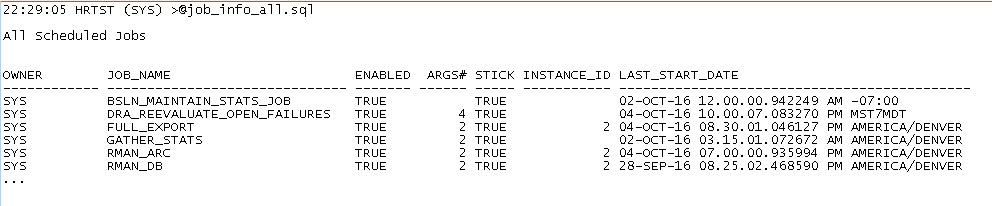
2. Basic Information You Need To Know About All The Jobs Scheduled In The Database
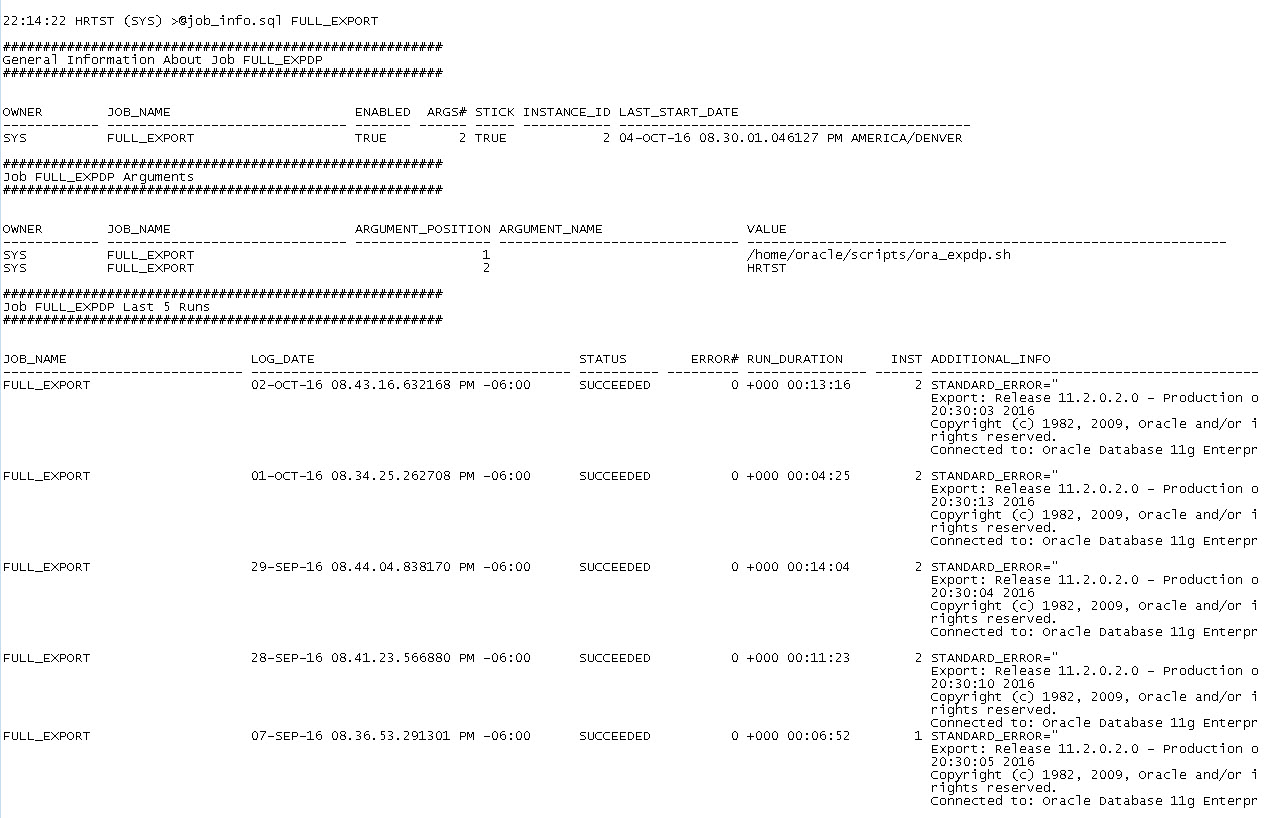
3. Detailed Information You Need To Know About A Specific Scheduled Job
1. Most Used Data Dictionary Views For Database Jobs
Did you know too much information can be overwhelming? You need to focus on
the information that is important to you.
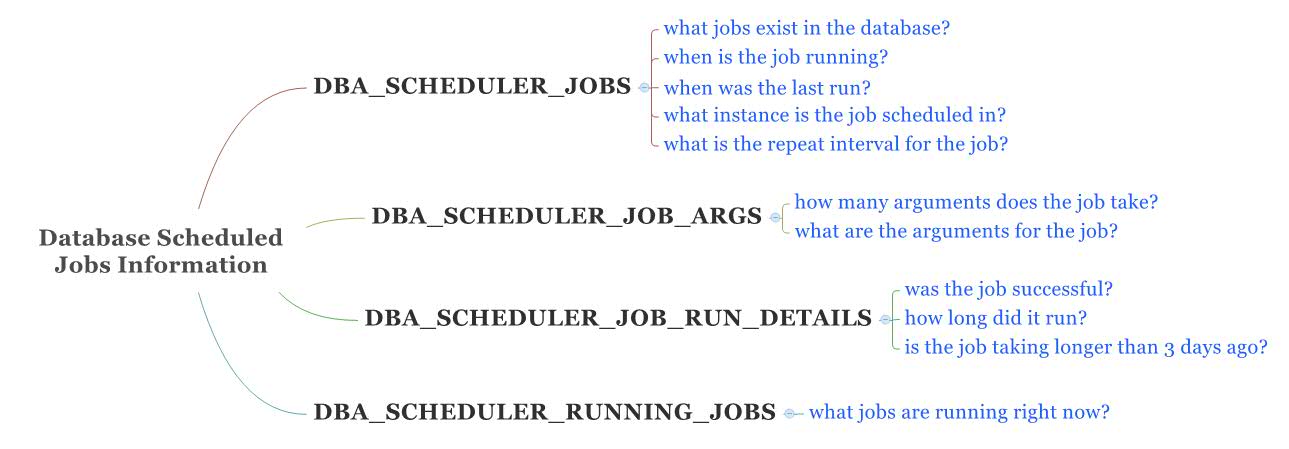
There are 4 dictionary views I want to query:
- DBA_SCHEDULER_JOBS
- DBA_SCHEDULER_JOB_ARGS
- DBA_SCHEDULER_JOB_RUN_DETAILS
- DBA_SCHEDULER_RUNNING_JOBS
To make it easier to remember use this mind map (click on it to open the image):